Connecting RN2903a module to the Things Network
- Open a new terminal on Windows.
- Go to the directory where you have donwloaded the RN2903 code using the ‘cd’ command.
- A python script called OTAAsample.py is written to join to the Things Network using OTAA(Over the Air Activation). You can see the script in the image below.
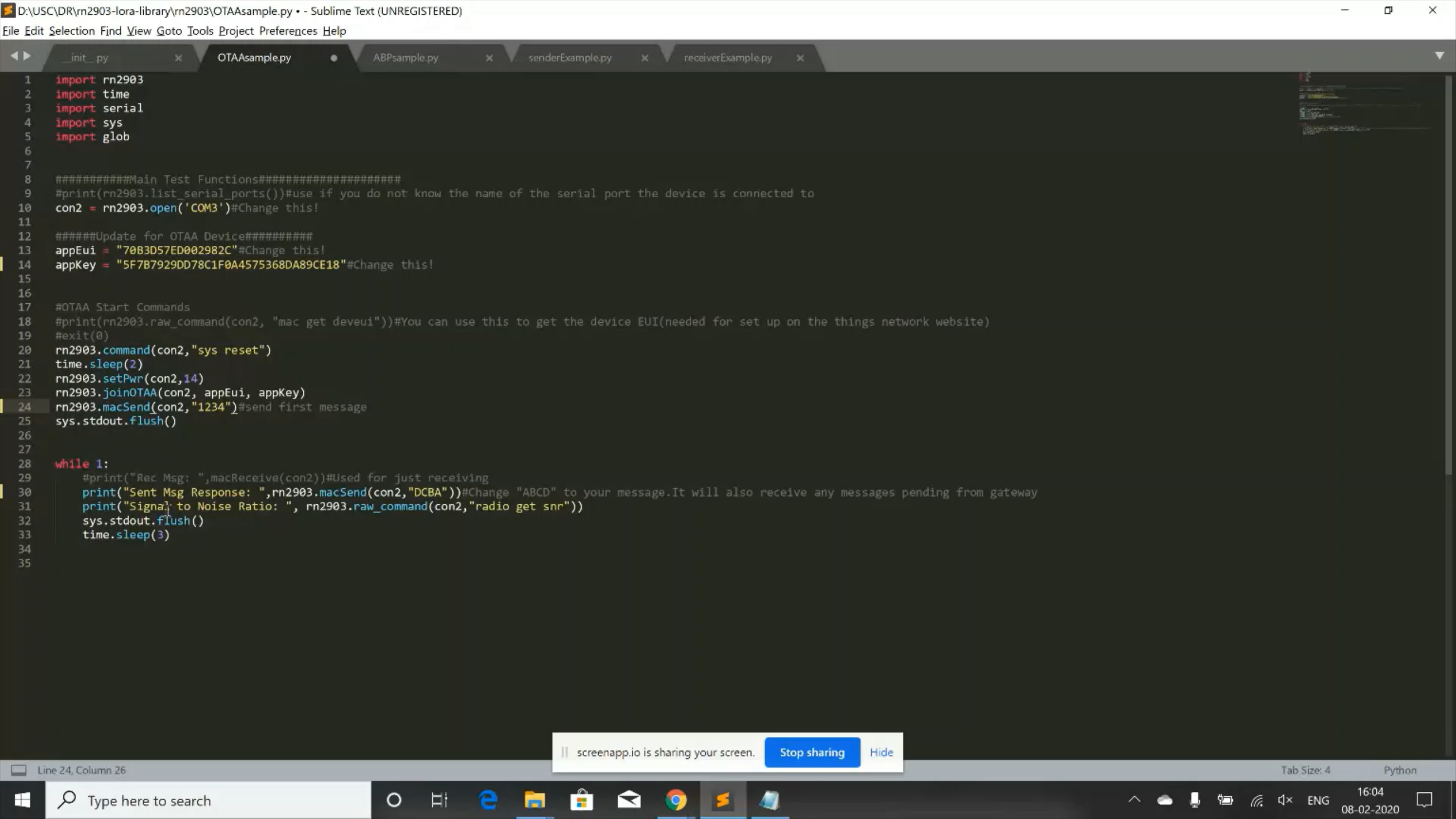
OTAAsample.py python script
- In OTAAsample.py script, you need to change few things.
- You need to change the argument of the open funtion. Change the argument to the serial port to which your RN2903 module is connected to. In my case, it is ‘COM3’. You can find out to which port the RN2903 module is connected to by going to device manager and goings to ports section.
- Then you need to change the appEUI and appKey. You can find this by going to your registered device page and going to the bottom of the page as you can see in the image below.

Getting appEUI and appKey
What does OTAAsample.py script do? and how to run this script
- You open a connection to the RN2903 module using the open function in the rn2903 library.
- You set the appEUI and appKey of the application on Things Network to which you want to send the data from your rn2903 module.
- You set the power to 14 using the setPwr function.
- Use the appEUI and appKey as arguments to joinOTAA function to connect your RN2903 module to the desired application on the Things Network.
- Then you use a function from the RN2903 library called the macSend funtion to send the data from the RN2903 module to the Things Netowrk. In our case, we have sent the packet with the payload “1234” to the Things Network first.
- Then in an infinte loop we are sending the packets with payload “ABCD” to the Things Network with an inter arrival time of 3 seconds.
Running the OTAAsample.py script
Now go ahead and open a terminal on windows and run this command -> python OTAAsample.py
Observing the packet reception from rn2903 module on the Things Network
Go to Things Network website and go to your Console.
Then click on Applications.
Go to your application and scroll down and go to registered devices section and select your device.
On the right top, you can find the tab that says Data. Click on it.
Once you click on the Data tab and if you are running the OTAAsample.py script, then you can see the packets being sent to the LoraWAN gateway with payload 1234 and ABCD.

Data sent from RN2903 module to cciloragateway
At the same time you can see messages saying packet are sent and Signal to Noise Ratio(SNR) on the Windows terminal where you are running OTAAsample.py script.
Now we can go to the LoraWAN gateway and check whether the packets are being received successfully.
Go to Console->Gateways.
Now click on Traffic tab on the right corner of your window.
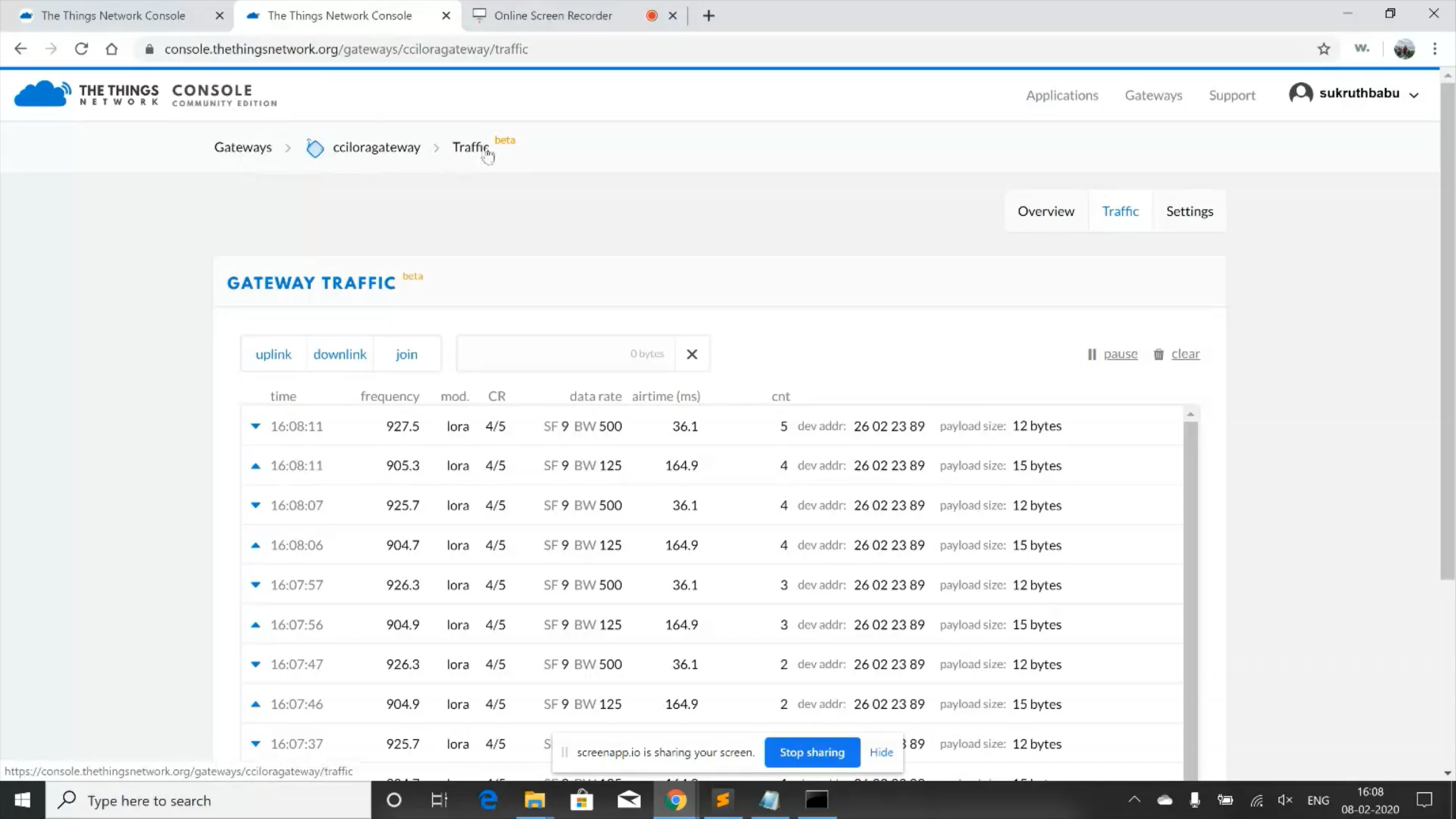
Data received at cciloragateway
Now you can see that packets are successfully received at cciloragateway which were sent from the RN2903 module.